Flexbox Layout
display: flex — on the parent container.
.movie-row {
  display: flex;
  justify-content: center;
  align-items: center;
  gap: 12px;
}
Let me ask you something.
Have you ever tried to put two things side by side in CSS and it just would not work? Or tried to center something perfectly in the middle of a page and spent twenty minutes fighting with margin and padding trying to get it right?
I have been there. Everyone who has learned CSS has been there.
Before Flexbox laying out elements in CSS was genuinely painful. You had to use floats and all sorts of hacks to get things positioned the way you wanted. It was frustrating even for experienced developers.
Then Flexbox arrived and everything changed.
Flexbox is a layout system that makes it incredibly simple to arrange elements in a row or a column, space them out, align them, and center them. It is the most used layout tool in modern CSS and once it clicks you will reach for it constantly.
Let us learn it properly. And we are going to use real movie cards throughout this whole lesson so everything feels like you are actually building something.
How Flexbox Works
Flexbox works on a parent and children relationship.
You have a container element. Inside it you have items. When you turn the container into a flex container all the items inside it automatically become flex items and you can control how they arrange themselves.
You turn a container into a flex container by writing just one line.
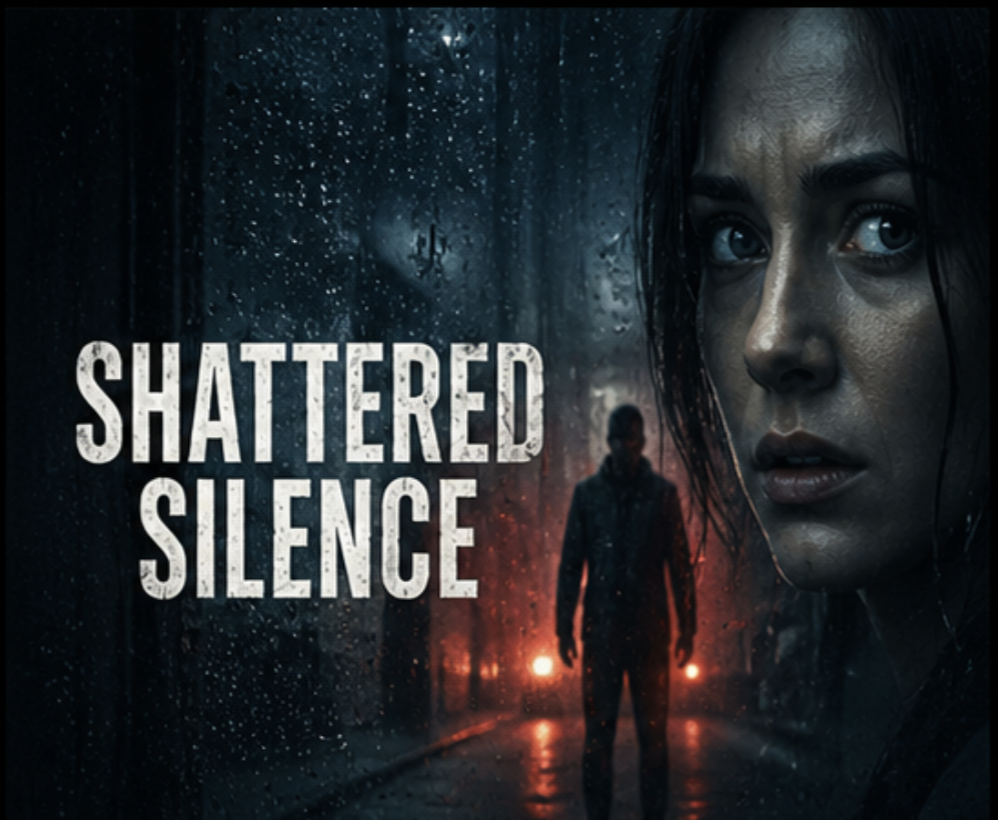
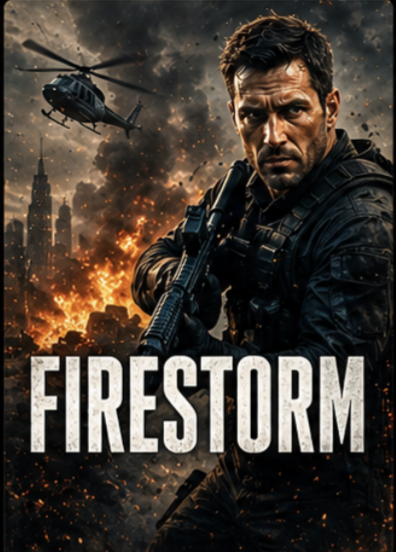
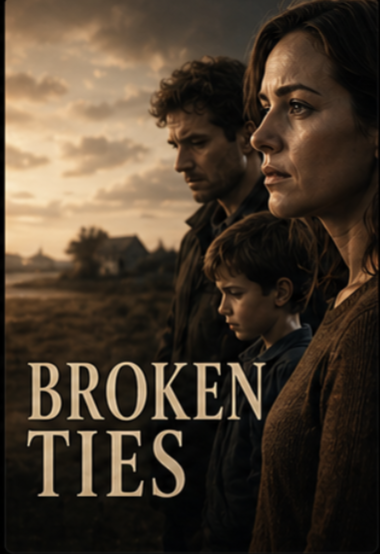
The three movie cards are now sitting side by side in a row at the same size. That is Flexbox doing its job. One line
— display: flex — and the layout changes completely.
By default Flexbox arranges items in a horizontal row from left to right. That is called the main axis. The vertical direction is called the cross axis.
flex-direction
By default items go left to right in a row. But you can change the direction using flex-direction.
Now the movie cards stack vertically one on top of the other instead of sitting side by side.
The four values are:
row — left to right. This is the default. Perfect for movie rows.
row-reverse — right to left.
column — top to bottom. Perfect for stacking cards vertically.
column-reverse — bottom to top.
justify-content
justify-content controls how items are spaced along the main axis. If your direction is row it controls
horizontal spacing. If your direction is column it controls vertical spacing.
The three cards are now spread out. First card at the far left, last card at the far right, equal space between them.
Now try center.
All three cards are now centered together in the middle of the container.
Here are all the main values:
flex-start — items sit at the beginning. This is the default.
flex-end — items sit at the end.
center — items are centered.
space-between — equal space between items, none at the edges.
space-around — equal space around each item including the edges.
space-evenly — perfectly equal space everywhere.
space-between is the value you will use most often for navbars and layouts where you want items spread
across the full width. center is what you reach for when you want things grouped together in the
middle. These two cover probably 80 percent of real use cases.
align-items
align-items controls how items sit along the cross axis. When your direction is row the cross axis is
vertical — so align-items controls how the cards sit vertically inside the container.
All cards are now vertically centered inside the container even though the first one is taller than the others.
Here are the main values:
flex-start — cards align to the top of the container.
flex-end — cards align to the bottom.
center — cards are centered vertically.
stretch — cards stretch to fill the full height. This is the default.
The combination of justify-content: center and align-items: center is the easiest way to
center anything perfectly in the middle of a container. Horizontally and vertically centered in two lines. I use
this constantly for hero sections, modals, and empty states.
The movie card is now perfectly centered both horizontally and vertically inside the container. Two lines. That is it.
flex-wrap
By default flex items all try to fit on one line. If there are too many cards they shrink to fit rather than
wrapping onto the next line. flex-wrap fixes that.
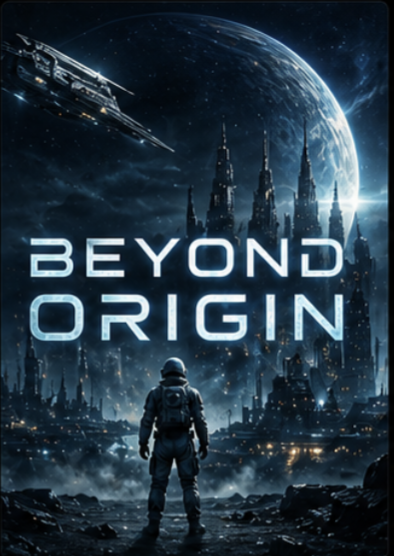
When there is not enough room for all five cards in one row they wrap onto the next line naturally. Try making the browser window narrower and watch how the cards drop onto new rows automatically.
flex-wrap: wrap is essential when you have multiple cards that should flow into multiple rows. Without
it all five cards will shrink and squish to stay on one line which looks terrible. If you are ever building a card
grid always add flex-wrap: wrap.
gap
gap controls the space between flex items. It only adds space between items not around the outside edges
which makes it much cleaner than using margin on individual items.
24px of clean consistent space between every card. Try changing it to 4px and then 40px
and see how the feel changes completely.
Building the Netflix Clone
Now let us bring everything together. The navbar uses Flexbox for the logo and button. The hero uses Flexbox column to center the content. The movie row uses Flexbox with overflow scrolling to show all five thumbnails.
Unlimited movies, TV shows, and more.
Starts at USD 2.99. Cancel anytime.
Ready to watch? Enter your email to create or restart your membership.
Trending Now
The navbar has a slightly lighter dark background with a subtle border so it is clearly separated from the rest. The movie section has its own background tone. Everything is readable and clearly defined.
Also Read — CSS BEM Naming
As your projects get bigger you will notice something. Class names start getting confusing. You have a class called
.title and you are not sure — is that the page title? The card title? The modal title? You have
.button and .btn and .btn-red all doing similar things. You have to read the
HTML to understand what any class is actually for.
BEM solves this. It is a naming convention that makes every class name self explanatory.
What BEM Stands For
BEM stands for Block Element Modifier.
Block — a standalone component that means something on its own. A movie card. A navbar. A button. A form.
Element — a part inside a block that only makes sense as part of that block. The image inside a movie card. The logo inside a navbar. The input inside a form.
Modifier — a variation of a block or element. A featured movie card. A disabled button. A large heading.
The Syntax
/* Block */
.movie-card { }

/* Element — double underscore */
.movie-card__image { }
.movie-card__title { }
.movie-card__badge { }

/* Modifier — double dash */
.movie-card--featured { }
.movie-card--unavailable { }

/* Element with modifier */
.movie-card__badge--hot { }
.movie-card__badge--new { }
Double underscore connects a block to its element. Double dash connects a block or element to its modifier.
Seeing It on the Netflix Clone
Without BEM our movie card HTML looks like this.
<div class="movie-card featured">
  <img src="images/movie-1.png" alt="Movie 1">
  <span class="badge">New</span>
</div>
With BEM it looks like this.
<div class="movie-card movie-card--featured">
  <img class="movie-card__image" src="images/movie-1.png" alt="Movie 1">
  <span class="movie-card__badge movie-card__badge--new">New</span>
</div>
And the CSS.
/* Block */
.movie-card {
  position: relative;
  width: 160px;
  height: 100px;
  border-radius: 8px;
  overflow: hidden;
  cursor: pointer;
}

/* Element */
.movie-card__image {
  width: 100%;
  height: 100%;
  object-fit: cover;
  object-position: center top;
}

.movie-card__badge {
  position: absolute;
  top: 8px;
  left: 8px;
  background-color: #333;
  color: white;
  font-size: 0.65rem;
  font-weight: 700;
  padding: 3px 8px;
  border-radius: 4px;
  text-transform: uppercase;
}

/* Modifiers */
.movie-card--featured {
  grid-column: span 2;
}

.movie-card--unavailable {
  filter: grayscale(100%);
  opacity: 0.5;
  cursor: not-allowed;
}

.movie-card__badge--new {
  background-color: #E50914;
}

.movie-card__badge--hot {
  background-color: #ff6600;
}
Now every class name tells you exactly what it is and where it belongs. .movie-card__badge--new is
clearly the new badge inside a movie card. You do not need to look at the HTML or read any CSS to understand that.
The name says it all.
Why BEM Matters on Bigger Projects
On small projects like our Netflix clone BEM feels like overkill. Extra typing for not much benefit.
But imagine you are working on a codebase with fifty components and five developers. Someone writes a class called
.title. Does that mean the page title? The section title? The card title? Nobody knows without reading
the HTML.
With BEM .hero__title clearly belongs to the hero block. .movie-card__title clearly
belongs to a movie card. .modal__title clearly belongs to a modal. You can read a class name and
instantly know what it is and where it lives.
You do not have to use BEM on every project. A lot of experienced developers use it selectively — BEM for
reusable components, simpler names for one-off page sections. The core idea worth taking from BEM even if you do
not follow it strictly is to name classes by what they are and what they belong to rather than what they look
like. .movie-card__badge is better than .red-dot. .signin-button is better
than .btn-top-right. Meaningful names over descriptive ones.
Have anything to say about this lesson?
Your feedback helps improve these tutorials. If something was confusing or missing, let us know.