Build a Netflix Clone With CSS
Every section is short. Every section does one thing. Let us go.
Step 1 — Connect CSS to HTML
Before we style anything we need two files talking to each other. Create a folder on your desktop called
netflix-clone. Inside it we will have two files — index.html and style.css.
In index.html we will start with this.
<!DOCTYPE html>
<html lang="en">
<head>
  <meta charset="UTF-8">
  <meta name="viewport" content="width=device-width, initial-scale=1.0">
  <title>Netflix Clone</title>
  <link rel="stylesheet" href="style.css">
</head>
<body>

</body>
</html>
That link tag in the head is what connects your CSS file to your HTML file. Without it nothing we write
in style.css will show up on the page.
Open the folder in VS Code and click Go Live at the bottom. Your browser will open. Blank white page for now. That is exactly where we want to start.
Want to understand how connecting CSS to HTML works in more depth? Read Adding CSS.
Step 2 — Add the Netflix Heading
Let us put something on the page. In the body of index.html we will have this.
<body>
  <h1 id="logo">Netflix</h1>
</body>
You will see the word Netflix appear on a white background. Plain black text. Now for the color — in
style.css we will use this.
Netflix
#logo { color: #E50914; }The Netflix heading is now that deep recognizable red. That value #E50914 is the exact red Netflix uses
for their logo. It is called a hex code — a precise way to write any color in CSS.
Want to learn more about how colors work in CSS? Read Colors.
Step 3 — Make the Background Dark
Netflix has a dark background. For that in style.css we will add this to the body.
Netflix
body { background-color: #141414; } #logo { color: #E50914; font-size: 3rem; letter-spacing: 4px; }The whole page goes dark. The logo is now bigger and more prominent against that dark background. Starting to feel like Netflix already.
Want to understand background colors more? Read Background Color.
Step 4 — Add a Google Font
Right now the text is using whatever font the browser defaults to. Netflix uses a clean modern font so for that we will add one from Google Fonts.
In the head section of index.html above the style.css link we will add this.
<link href="https://fonts.googleapis.com/css2?family=Bebas+Neue&family=Roboto:wght@300;400;700&display=swap" rel="stylesheet">Now to use Roboto across the whole page and give the logo Bebas Neue, we will update style.css.
Netflix
@import url('https://fonts.googleapis.com/css2?family=Bebas+Neue&family=Roboto:wght@300;400;700&display=swap'); body { background-color: #141414; font-family: "Roboto", Arial, sans-serif; } #logo { color: #E50914; font-size: 3rem; letter-spacing: 4px; font-family: "Bebas Neue", sans-serif; }The Netflix logo now has that strong display font and the rest of the page uses clean readable Roboto.
Want to learn how Google Fonts work? Read Google Fonts.
Step 5 — Build the Navbar
Netflix has a navbar at the top with the logo on the left and a Sign In button on the right. For that structure in
index.html the body will look like this.
<body>
  <div class="navbar">
    <h1 id="logo">Netflix</h1>
    <button class="signin">Sign In</button>
  </div>
</body>
Now to push the logo to the left and the button to the right we will use Flexbox in style.css.
The logo sits on the left and the Sign In button sits on the right. That justify-content: space-between
is what pushes them to opposite sides. Flexbox is one of the most powerful layout tools in CSS.
Want to understand how Flexbox works? Read Flexbox Layout.
Step 6 — Add the Hero Background Image
The most dramatic part of Netflix is that full screen cinematic background. For the structure in
index.html the body will look like this.
<body>
  <div class="navbar">
    <h1 id="logo">Netflix</h1>
    <button class="signin">Sign In</button>
  </div>

  <div class="hero">
  </div>
</body>
And for the background image and that dark gradient overlay on top of it we will have this in style.css.
The whole page now has that dark cinematic Netflix background. That gradient sitting on top of the image is what makes it darker so text stays readable on top of it.
Want to understand background images and gradients? Read Background Color and CSS Gradients.
Step 7 — Add the Hero Text
Now for the main text inside the hero. In index.html the hero div will look like this.
<div class="hero">
  <h1>Unlimited movies, TV shows, and more.</h1>
  <p>Starts at USD 2.99. Cancel anytime.</p>
  <p>Ready to watch? Enter your email to create or restart your membership.</p>
</div>
For the text to sit centered on the hero and for the heading and paragraph to look right we will update
style.css like this.
Unlimited movies, TV shows, and more.
Starts at USD 2.99. Cancel anytime.
Ready to watch? Enter your email to create or restart your membership.
The text now sits perfectly centered on the hero section over that dark cinematic background.
Step 8 — Add the Email Form
Netflix has an email input and a Get Started button right below the text. For that in index.html we will
update the hero div like this.
<div class="hero">
  <h1>Unlimited movies, TV shows, and more.</h1>
  <p>Starts at USD 2.99. Cancel anytime.</p>
  <p>Ready to watch? Enter your email to create or restart your membership.</p>
  <form class="hero-form">
    <input type="email" placeholder="Email address">
    <button type="submit">Get Started</button>
  </form>
</div>
For the input and button to sit side by side and look clean we will have this in style.css.
Unlimited movies, TV shows, and more.
Starts at USD 2.99. Cancel anytime.
Ready to watch? Enter your email to create or restart your membership.
The email form now looks clean and professional. Click into the input and the border turns white. Hover over the button and it darkens slightly. Small details that make a big difference.
Want to understand how hover states and focus styles work? Read Transitions.
Step 9 — Add the Movie Cards
Netflix has rows of movie thumbnails. For the structure in index.html we will add this section below the
hero.
<div class="movie-section">
  <h2 class="section-title">Trending Now</h2>
  <div class="movie-row">
    <div class="movie-card">
      <img src="/images/movie1.png" alt="Movie 1">
    </div>
    <div class="movie-card">
      <img src="/images/movie2.png" alt="Movie 2">
    </div>
    <div class="movie-card">
      <img src="/images/movie3.png" alt="Movie 3">
    </div>
    <div class="movie-card">
      <img src="/images/movie4.png" alt="Movie 4">
    </div>
    <div class="movie-card">
      <img src="/images/movie5.png" alt="Movie 5">
    </div>
  </div>
</div>
For the cards to sit in a horizontal scrolling row and lift off the page on hover we will have this in
style.css.
Trending Now
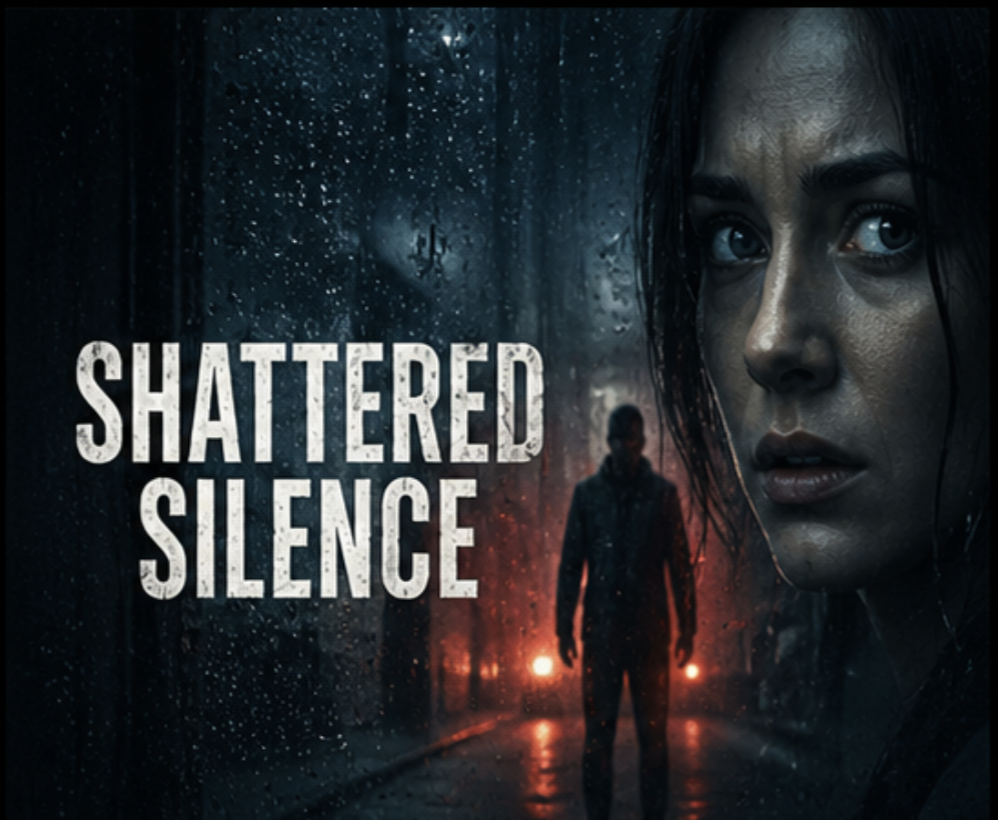
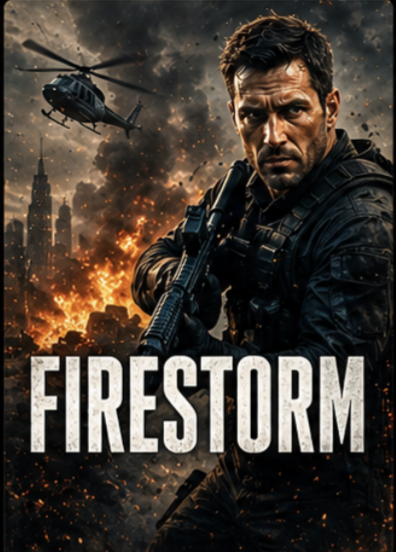
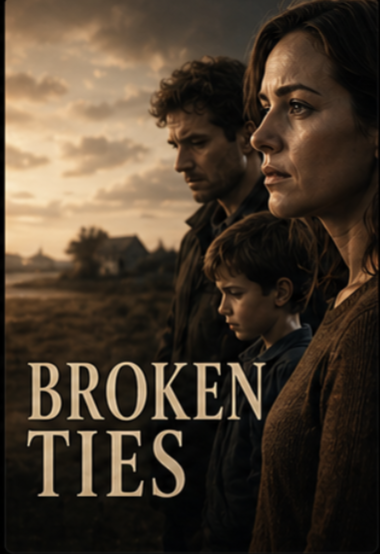
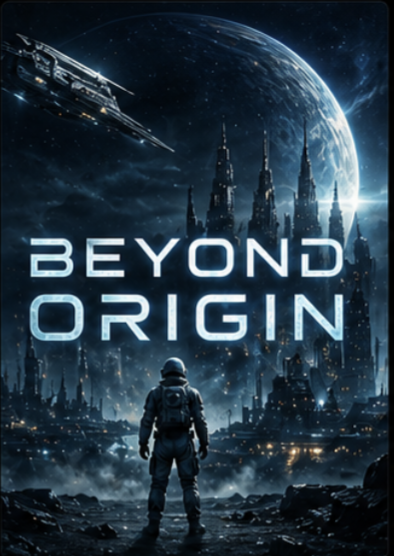

A horizontal scrolling row of movie thumbnails. Hover over any card and it lifts off the page. That is the exact
Netflix card effect built with transform and transition.
Want to understand how transitions and hover animations work? Read Transitions.
Step 10 — Fix the Navbar to the Top
Right now the navbar scrolls away with the page. For it to stick to the top as you scroll we will update the
.navbar in style.css like this.
Scroll the page now and the navbar stays locked to the top. That position: fixed with
z-index: 9999 is what keeps it there and makes sure it always sits on top of everything else.
Want to understand how position and z-index work? Read Positioning and CSS Z-index.
Step 11 — Reset Default Browser Styles
You might notice some small gaps or unexpected spacing here and there. That is the browser adding its own default
styles. To remove those and start clean we will add this at the very top of style.css before everything
else.
Unlimited movies, TV shows, and more.
Starts at USD 2.99. Cancel anytime.
Clean consistent foundation. No browser surprises. The
* { margin: 0; padding: 0; box-sizing: border-box; } block is the first thing most professional
developers put in every project.
Want to understand CSS resets and why they matter? Read CSS Reset and Organizing CSS.
Step 12 — Make It Responsive
The page looks great on desktop. For phones we will adjust a few things with media queries. At the bottom of
style.css we will have this.
Unlimited movies, TV shows, and more.
Starts at USD 2.99. Cancel anytime.
Ready to watch? Enter your email to create or restart your membership.
Drag the browser window narrower now. The heading shrinks, the form stacks vertically, and everything stays readable on a small screen.
Want to understand how responsive design and media queries work? Read Responsive Design.
You Just Built a Netflix Clone
Look at what is on your screen right now.
- A fixed navbar with the Netflix logo and a Sign In button.
- A full screen hero section with a cinematic background and gradient overlay.
- A centered heading, paragraph, and email form.
- A horizontal scrolling row of movie cards that lift on hover.
- A page that looks right on desktop and mobile.
That is a real webpage. Built by you. With real CSS techniques used on production websites.
Every single thing you built here is a concept with much more depth to explore. You touched the surface of Flexbox, position, transitions, animations, pseudo-classes, media queries, and more.
If you want to go deeper on any of it the full CSS course covers every one of these topics from scratch with detailed explanations and hands on challenges.
Have anything to say about this lesson?
Your feedback helps improve these tutorials. If something was confusing or missing, let us know.