Images
Look at almost any website on the internet and you will notice something straight away.
Images.
They are everywhere. On news pages, product pages, social media, blogs. Sometimes they show something useful, sometimes they explain a concept, and sometimes they just make the page more interesting to look at.
Take a look at this page for example. Notice the photo sitting on the right side. It did not appear there by accident. Someone wrote one line of HTML and the browser loaded and displayed it right there on the page.
That is what you are going to learn in this lesson.
Nadia
Nadia (born 1988) is an American software engineer, web developer, educator, and content creator. With over 10 years of professional experience in web development, she has become one of the most influential voices in tech education.
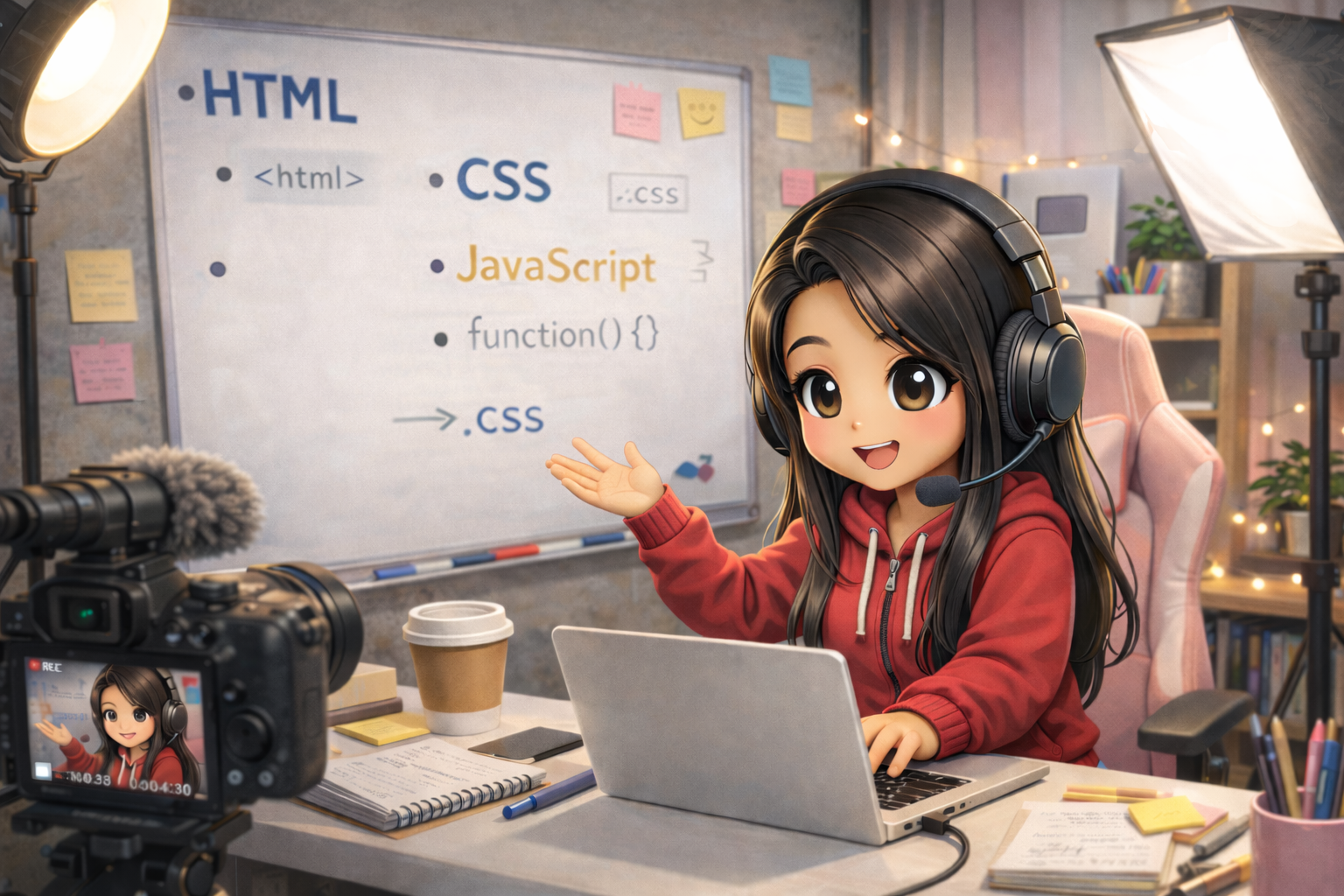
Born: 1988
From: New York City
Known for: Web dev education
How to Add an Image
Just like we use tags for headings and paragraphs, HTML also gives us a tag to add images.
To display an image you use the <img> tag. But just writing <img> is not
enough. The browser knows you want an image but has no idea which one to show.
To tell it which image to show, you add the src attribute. src stands for source and it
simply tells the browser where the image is.
src is an attribute. Attributes give extra information to an HTML tag. They are always written inside
the opening tag. You can learn more in the HTML Attributes article.
This tells the browser to find a file called nadia.png and display it on the page. When the browser
reads nadia.png it looks in the same folder as the HTML file, finds the image, and displays it. The image
file must be in the same folder as your HTML file otherwise the browser will not find it.
Controlling the Size
As you can see the image is taking up a lot of space. To control the size you add width and
height attributes to the <img> tag.
This does make the image smaller but there is a problem. You can see the image looks stretched or squished. That is because we forced both the width and height to fixed numbers and the original proportions got broken.
To keep the original proportions of the image, set the height to auto.
Now the image will be 250 pixels wide and the browser will automatically figure out the correct height to keep the proportions right. Clean and correctly proportioned.
If you remove the height attribute completely, the browser will automatically maintain the correct proportions. So
height="auto" and leaving it out entirely work the same way.
Alt Text
Sometimes an image might fail to load. Maybe the internet connection is slow or the file path is wrong. When that happens the user has no idea what the image was supposed to show.
That is where the alt attribute comes in. alt stands for alternative text. You add it
inside the <img> tag to describe what the image shows.
If the image does not load, users will see the message "Photo of Nadia" instead. They still know what was supposed to be there.
But alt text is not just about failed images. People who are visually impaired often use screen readers to browse the web. A screen reader reads the content of a page out loud. When it reaches an image it reads the alt text so the user understands what the image shows even if they cannot see it.
It is a small thing but it makes a big difference. Make it a habit to add alt text to every image you write.
Always include alt text on every image. It helps screen readers and shows a description when the image
fails to load.
Keeping Things Organized
Right now we are keeping the image in the same folder as the HTML file. That works fine for a small project. But in real projects you will have plenty of images and keeping everything in one place gets messy fast.
The clean way to do it is to create a separate folder called images and put all your image files inside
it.
Once you do that you need to update the path in your HTML to tell the browser where to look.

This tells the browser to go inside the images folder, find nadia.png, and display it.
If you move an image to a different folder and forget to update the path, the image will disappear. The browser can only find images if you tell it exactly where they are.
Images From the Internet
So far we have been using images saved on our own computer. But you can also display images directly from the internet.
Instead of a file name you just use the full web address of the image as the source.

The browser will go to that URL, load the image, and display it on your page. No file needed on your computer at all.
A great place to find free images to practice with is Unsplash. Go to unsplash.com, find an image
you like, right click it, copy the image address, and paste it into your src.
Putting It All Together
Here is a complete image tag with everything from this lesson.
There are also other ways to add images in HTML. Next we will learn about the <figure> element and <figcaption>, which let you add a caption to your image. Continue to Figure and Figcaption →
Have anything to say about this lesson?
Your feedback helps improve these tutorials. If something was confusing or missing, let us know.